Getting Started
Welcome to the platform. This guide gives you a five-minute tour of the interface.
Signing in
Open the platform URL and enter the account and password your administrator sent you. If your company requires two-factor authentication, you will also be asked for a verification code after your password — sent by SMS or shown in your authenticator app (see Account Security).
Interface layout
After signing in, the interface has three parts:
- Top bar: the apps menu entry on the left, global search in the middle, and messages, the notification bell and your avatar on the right.
- Apps list: click the top-left entry to expand the list of every app you may use; hover over an app to expand its full menu.
- Workspace: the main area, showing the current list, form or page.
Which apps and menus you can see is decided by the roles your administrator assigned. If you cannot see an entry, it is usually a permission that has not been granted rather than a fault.
Home
After signing in you land on Home. It puts what needs your action and what you are waiting for on one screen:
- Number cards: approvals waiting for you, co-sign requests, documents to sign, your requests in progress and unread notifications. Each card is clickable and takes you to the page where you can deal with it;
- Quick start: documents you can start yourself — one click opens a new one;
- To-dos: the latest 8 items waiting for your approval;
- Started by me: your latest 5 requests still in progress, with the step each one is waiting at;
- Latest announcements: the 5 most recent announcements — click to read in full;
- My apps: the apps you can use — click an icon to open one.
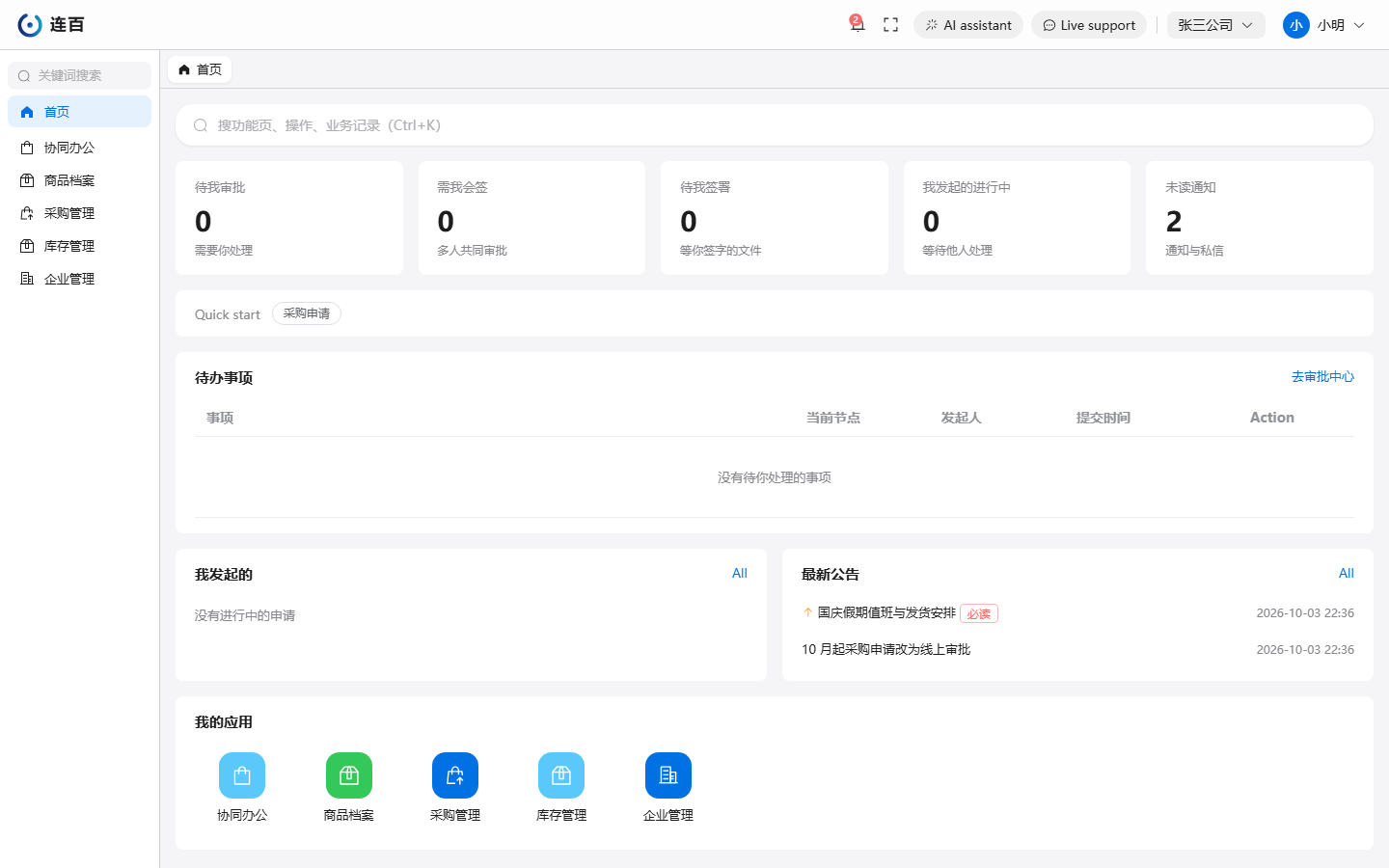
Each block only appears when you can use the feature behind it: if E-Sign is not in your menu, there is no "to sign" card. A missing block is not a fault.
There are two fixed ways back: the "Home" item at the top of the left menu and the "Home" tab at the far left of the tab bar. Going Home does not close the tabs you have open; closing every tab also brings you back to Home.
Global search and the command palette
Press Ctrl+K (or click the top-bar search box) to open the command palette:
- type a menu name to jump directly to any page;
- type a keyword of two or more characters to also search the business records within your visible scope, and press Enter to open that record directly.
Collaboration and Intelligent Management
The "Collaboration" app holds what you use every day: the Approval Center (to-dos assigned to you / requests you started), the Report Center, the File Center and E-Sign. To-dos also appear on Home; open the Approval Center for the full list. The Approval Center only appears under a company; your personal space does not have it, and the approval blocks on Home are not shown there either. Approval flows themselves are designed by administrators under "Settings → Company Settings → Approval Flows".
Announcements have no menu entry of their own: a new one shows up in the notification bell and under "Latest announcements" on Home.
Tools for creating and for keeping knowledge live in the "Intelligent Management" app: the Creation Center (whiteboard, mind map, flowchart, prototype, document, slides, spreadsheet, writing, survey forms and the activity feed) and the Knowledge Base. The configuration tools — agent orchestration and the integration platform — belong to administrators, under "Settings → Company Settings"; they are also available in your personal space.
On your phone
Away from your computer, you can look up records, handle approvals and read notifications in a phone browser — see Using the platform on your phone (that guide is in Chinese for now).